
Explainer Video Generator for Your Notes, Docs and Slides
Use Lesson Motion’s AI explainer video generator to turn your notes, documents, slides, and reference images into animated videos, with a script, scenes, and optional voiceover.
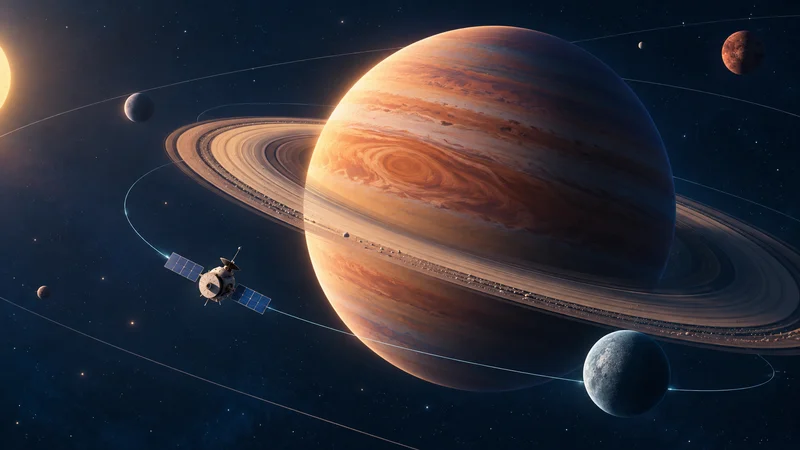
What will you explain with Lesson Motion?
Explain a concept.
Turn lesson notes or a topic outline into an animated explanation.
Introduce a product.
Use product photos and feature notes to explain what it does.
Walk through a workflow.
Turn a process document into a visual sequence of the stages.
Share how something works.
Combine notes and reference images to explain an everyday process.
From your material to an animated explanation.
Start with what you have.
Paste your notes or upload documents, slides, and reference images with instructions. You can combine text and files in one request.
Let AI organize the explanation.
Lesson Motion organizes the key points, writes the script, and builds the scenes and animation around your explanation.
Add an optional voiceover.
Enable voiceover and choose an available voice for your explainer video, or create it without narration.
Choose the length and frame.
Choose a duration and a landscape, portrait, or square frame to suit where you will show your video.
Explainer video examples
Explore product introductions, knowledge explainers, and process walkthroughs as starting points for your own content.

Product introduction
Made for everyday listening
A closer look at a pair of headphones, from their shape and small details to their place in an everyday routine.
View example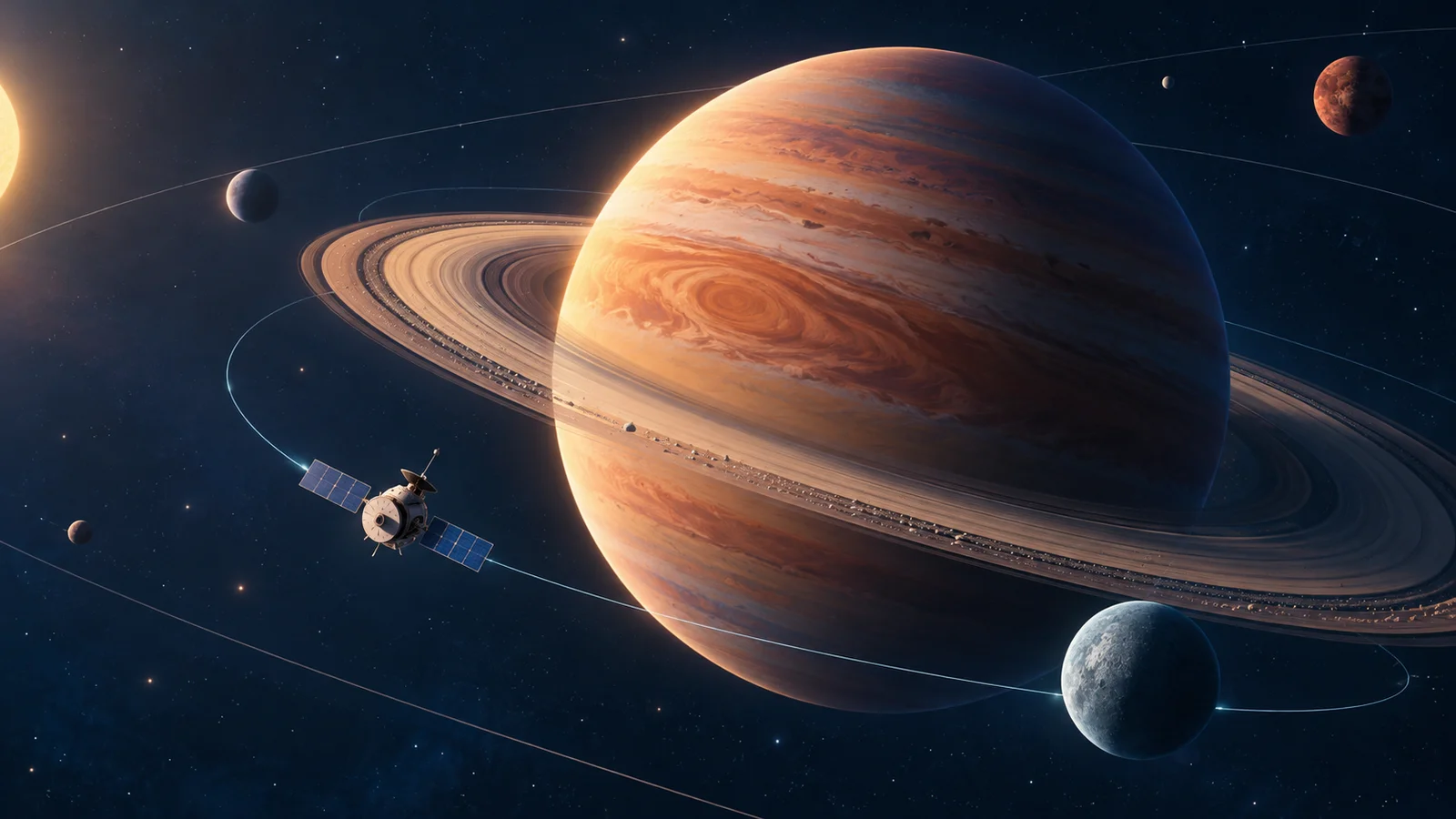
Knowledge & discovery
A little closer to the cosmos
A journey through planets, orbits, and the space between them. Turn a big subject into a few clear visual ideas.
View example
Everyday stories
From bean to morning ritual
Follow coffee from a handful of beans to a freshly brewed cup, with attention to color, texture, and the rhythm of each step.
View example
Work & processes
From first idea to finished work
Make a team's working process easier to follow, with clear stages and a visual thread connecting each handoff.
View example
Frequently asked questions
How do I make an explainer video with Lesson Motion?
Open the creation page, add your content, and describe what you want to explain. Choose the duration, aspect ratio, and whether to include a voiceover. Lesson Motion then organizes your material and creates the animated video.
Do I need to write the script first?
No. You can start with notes, an outline, or existing material. Lesson Motion identifies the key points, writes the video script, and plans the scenes. You do not need animation experience to get started.
Can I turn my documents or slides into an explainer video?
Yes. Upload PDF, Word, PowerPoint, TXT, or Markdown files, and add instructions about what the video should explain. For longer material, name the topic or sections you want the explanation to focus on.
How can I use reference images?
Add diagrams, product photos, or other reference images, together with a description of what they should explain. Lesson Motion uses the images and your instructions to organize the video’s scenes and animation.
What can I explain with Lesson Motion?
You can explain a concept, introduce a product, show the stages of a workflow, or share how an everyday process works. Start with your own material and tell Lesson Motion who the explanation is for and what they should understand.
What happens if my material needs more detail?
If Lesson Motion needs more information, it asks a question on the task page. Answer there and creation continues. You can follow the task’s progress on the same page.
Can I add an AI voiceover to my explainer video?
Yes. Enable voiceover on the creation page and choose an available voice. You can also turn voiceover off to create a video without narration.
How long can my explainer video be?
You can choose a duration from 5 seconds to 5 minutes, in 1-second increments. The maximum available to your account depends on your plan. For a short explainer, focus the material on one idea or process.
Which aspect ratios and video format can I use?
Choose landscape (16:9), portrait (9:16), or square (1:1) when creating your video. The finished video is an MP4. Choose the frame that suits your presentation or the platform where you plan to show it.
Can I choose the language of my explainer video?
State the language you want in your instructions. Lesson Motion uses it for the script and video text. If you enable voiceover, choose a voice suitable for that language.
Is Lesson Motion’s AI explainer video generator free?
No. Video creation uses credits. Sign in with Google and choose a plan to get started. You can check your available credits from your account. View pricing
Where do I watch my finished video?
Watch the finished video on its task page. You can return to it later by opening the task from your history.
Your content. Your next explainer video.
Bring the notes, documents, or images behind your idea. Let Lesson Motion turn them into an animated explanation.