
PDF to Video: Turn Any PDF into an Animated Video
Turn the key ideas in your PDF into an animated video. Upload your document, describe what to focus on, and let Lesson Motion create the script, scenes, and optional voiceover.
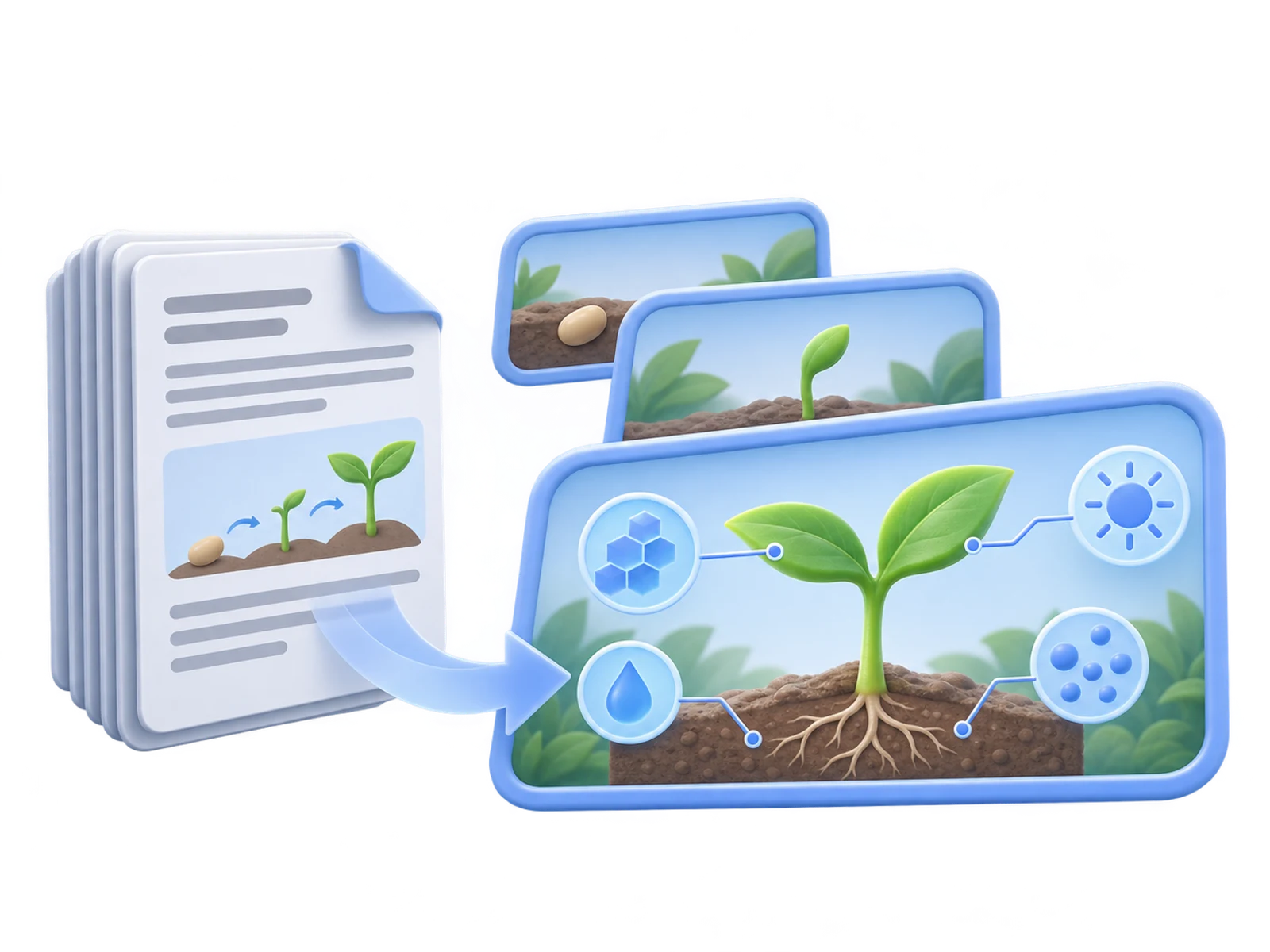
Give the ideas in your PDF a new way to move.
Start with a document you already have. Use Lesson Motion to turn its key ideas into a video people can follow.

Bring study materials to life.
Turn lesson handouts, study notes, or a chapter summary into an animated explanation of a concept. Tell Lesson Motion what your audience should understand.
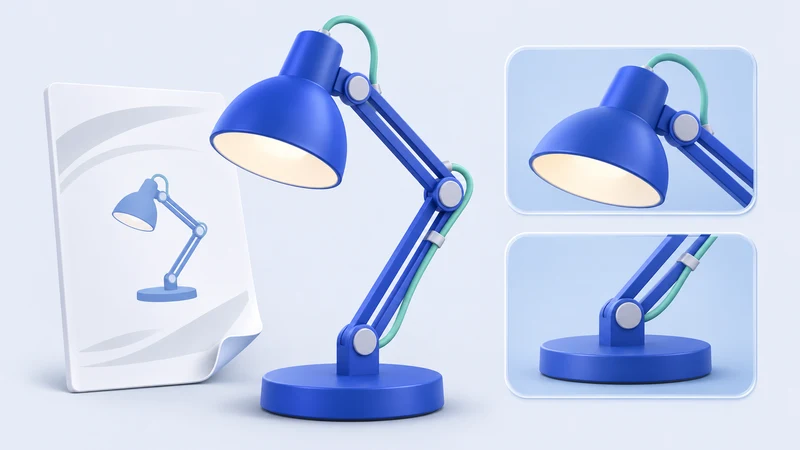
Introduce a product clearly.
Use a PDF brochure or product guide to explain what a product does. Combine its feature descriptions and available images into a visual introduction.

Make a process easier to follow.
Turn a workflow guide or training document into a sequence of stages. Focus the video on the process you want to explain.
From document content to animated scenes.
Start with your PDF.
Upload your document and add instructions. Lesson Motion reads its text and can use images from the PDF as material for the video.
Let AI shape the story.
Lesson Motion organizes the key points, writes a video script, and builds scenes and animation around your content. You do not need a finished script to begin.
Choose an optional voiceover.
Enable narration and choose an available voice, or create without a voiceover. Tell Lesson Motion which language you want the video to use.
Set the length and frame.
Choose the duration available with your plan and a landscape, portrait, or square frame. Watch the finished MP4 on its task page.
How to turn your PDF into a video
Upload your PDF.
Open the creation page and add your document. You can include other reference files alongside it.
Describe the focus.
Say what the video should cover, who it is for, and which language to use. For a longer PDF, name the sections or ideas that matter.
Choose your settings and create.
Select the duration, aspect ratio, and optional voiceover. Start creation, follow the progress, and watch the result on the task page.
PDF to video questions, answered.
How do I convert PDF to video with Lesson Motion?
Open the creation page, upload your PDF, and describe what the video should focus on. Choose the duration, aspect ratio, and whether to include a voiceover. Lesson Motion organizes the material, writes the script, and creates the animated video. If more information is needed, answer the question on the task page to continue.
What kinds of PDF content can I use?
You can start with study materials, product documents, process guides, or other PDF content you want to explain. Add instructions about the audience and purpose. The creation page accepts up to 10 files, with a maximum of 20 MB per file and 50 MB in total.
Do I need to write a video script first?
No. Start with your PDF and a description of what you want to communicate. Lesson Motion identifies the key points, writes the script, and plans the scenes and animation.
Can I focus on part of a longer PDF?
Yes. In your instructions, name the chapters, sections, or ideas you want the video to cover. A focused brief helps shape the material into the video length you choose.
Can Lesson Motion use images from my PDF?
Lesson Motion can extract images from a PDF and use suitable ones as material for the video. You can also upload reference images separately and explain how they relate to your content.
Can I choose the voiceover and video language?
Yes. Enable voiceover on the creation page and choose an available voice, or turn it off. State the language you want in your instructions, and choose a voice suited to it when using narration.
How long can my PDF video be?
You can choose a duration from 5 seconds to 5 minutes, in 1-second increments. The maximum available to your account depends on your plan. For a short video, focus on one concept or a few key points from your PDF.
Which aspect ratios and video format are supported?
Choose landscape (16:9), portrait (9:16), or square (1:1) when creating the video. The finished video is an MP4 that you can watch on its task page.
Is PDF to video creation free?
Video creation uses credits. Sign in with Google and choose a plan to get started. You can check your available credits from your account. View pricing
Where do I watch the finished video?
Watch the finished video on its task page. To return to it later, open the task from your history.
Your PDF. Your next video.
Bring the document behind your idea. Let Lesson Motion turn its key points into an animated video.